Introduction
Pinning websites directly to your taskbar can greatly improve your productivity. With the changes introduced in Windows 11, organizing your favorite websites has never been easier. Google Chrome, being a popular browser, offers straightforward methods to pin frequently visited sites, bringing efficiency to your digital routine.
Preparing Your System
Before pinning a website, ensure your system is set up correctly. First, verify that you are using Windows 11, which offers enhanced features and streamlined user experiences. Make sure Google Chrome is installed and set as your default browser for optimal performance. This setup is crucial for seamless interaction between the browser and your taskbar.
Step-by-Step Guide to Pinning Websites
With your system ready, follow these steps to pin a website to your taskbar:
1. Accessing Your Desired Website: Open Google Chrome and navigate to the website you wish to pin.
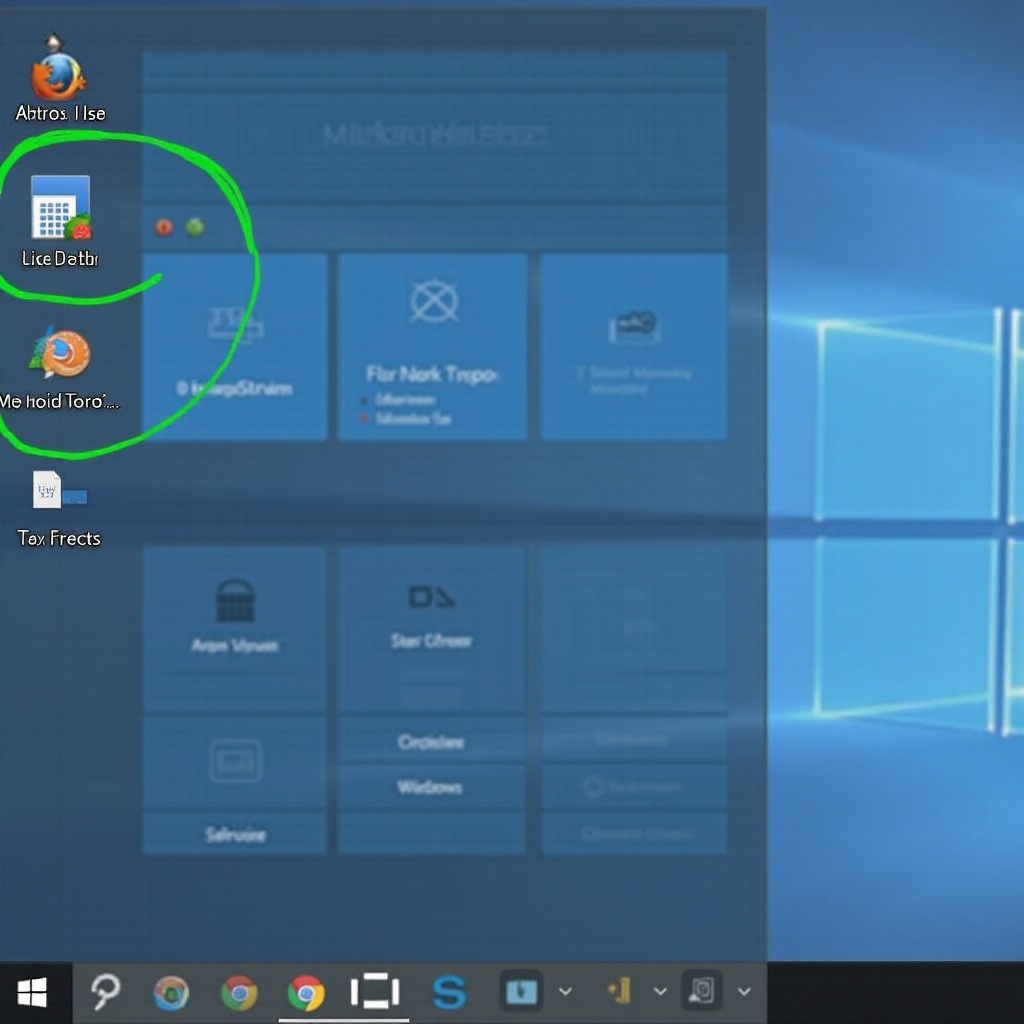
2. Creating a Shortcut with Chrome: Click the three-dot menu in the top-right corner, choose ‘More tools,’ and then ‘Create shortcut.’ In the dialogue box, ensure ‘Open as window’ is ticked to keep the session isolated from other tabs, then click ‘Create.
3. Pinning the Shortcut to the Taskbar: Find the newly created shortcut on your desktop, drag it to your taskbar, and drop it when ‘Pin to Taskbar’ appears.
Customizing Your Taskbar Experience
Now that your websites are pinned, maximizing their usefulness involves a bit of customization.
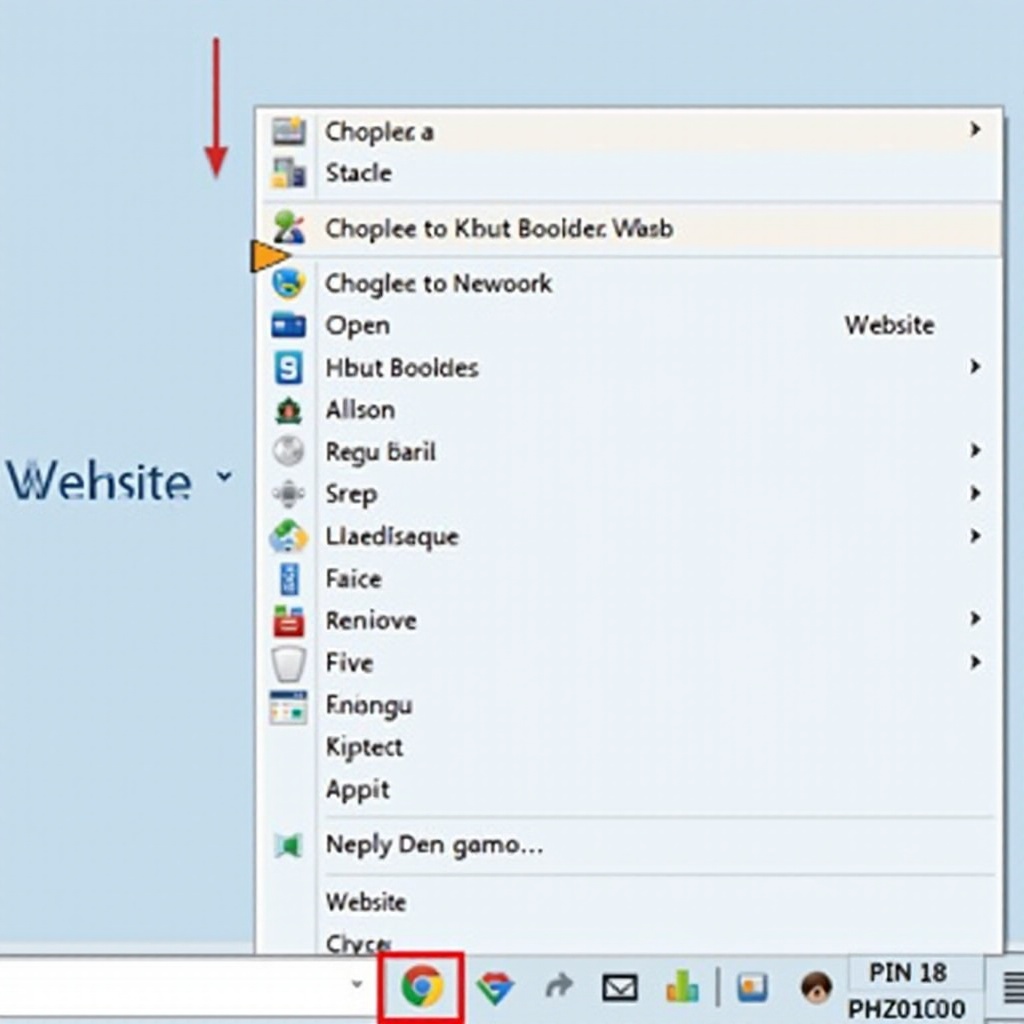
– Editing Icons for Better Recognition: Right-click the icon on your taskbar, select ‘Properties,’ and then ‘Change Icon’ to choose a distinct image. Unique icons help in quickly distinguishing between various pinned sites.
– Organizing Shortcuts for Efficiency: Rearrange icons on the taskbar by dragging them into your preferred order. Group websites by context or frequency of use for an organized working environment.
Troubleshooting Common Issues
Even with a smooth setup, you might encounter challenges:
– Non-responsive Shortcuts: If a shortcut fails to open, check your internet connection and verify that Chrome is your default browser.
– Updating Shortcuts After URL Changes: Should a website’s URL change, right-click on the taskbar shortcut, select ‘Properties,’ and update the URL in the ‘Target’ field.
Best Practices for Taskbar Organization
A well-organized taskbar helps maintain focus and efficiency:
– Use folders or dividers to categorize pinned websites, like those used for work, news, or entertainment.
– Regularly review and remove unnecessary shortcuts to keep your taskbar clutter-free and efficient.
Conclusion
By pinning websites to your taskbar, you have streamlined access to your favorite sites right from the desktop. The steps outlined above enable you to customize and organize your digital workspace effectively. As you master these features, consider exploring other customization options available in Windows 11 to further enhance your computing experience.
Frequently Asked Questions
How do I unpin a website from the taskbar in Windows 11?
Right-click the icon on your taskbar and select ‘Unpin from taskbar.’
Can I pin more than one website to the taskbar?
Yes, follow the steps for each website you wish to pin using Chrome.
What to do if the website does not open when clicked from the taskbar?
Ensure Chrome is your default browser and the internet is connected. Recreate the shortcut using the guide if needed.