Introduction
Blink cameras are pivotal to smart home security, offering reliable video surveillance and motion detection to help protect your home. However, like any electronic device, they occasionally require a reboot to resolve glitches and enhance functionality. This guide provides detailed steps for rebooting your Blink camera, recognizing when a reboot is necessary, and maintaining your system for optimal performance.

Why Rebooting Your Blink Camera Is Important
Rebooting your Blink camera is crucial for resolving typical issues such as connectivity problems, frozen screens, or lagging video feeds. When you restart the device, it clears temporary software glitches and refreshes the system, allowing it to function optimally. Regular reboots can prevent performance issues, helping maintain the reliability and efficiency of your home security setup. Understanding the importance of rebooting is vital to recognizing when a refresh is necessary.
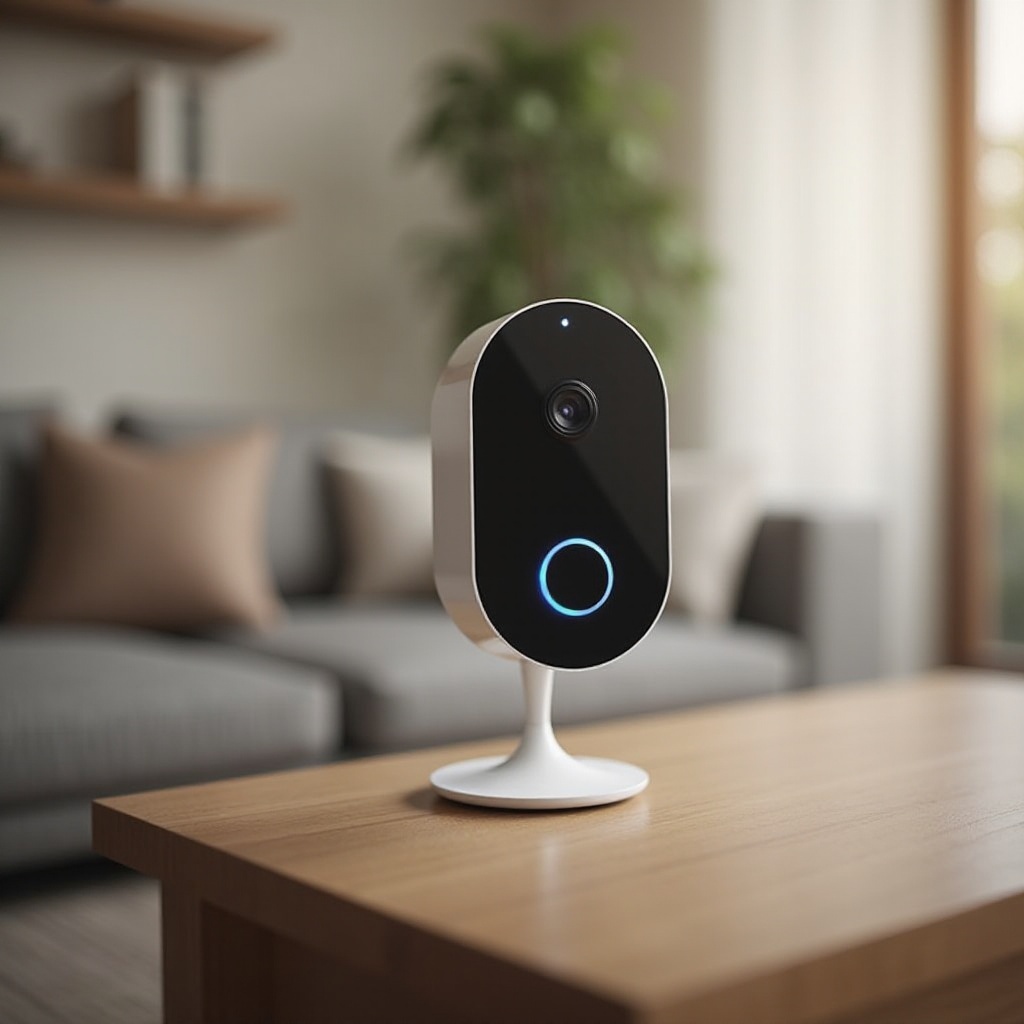
Identifying When a Reboot Is Necessary
Knowing when your Blink camera needs a reboot is essential for maintaining its effectiveness. Common indicators include:
1. Connectivity Issues: Your camera frequently disconnects from Wi-Fi, causing interruptions in video transmission.
2. Frozen Screen: The live feed or app interface becomes unresponsive.
3. Delayed Alerts: Notifications for motion detection arrive late or not at all, affecting timely responses.
4. Lag in Video Feed: Video footage is choppy or delayed.
By identifying these signs, you can reboot your camera promptly and prevent prolonged security disruptions. Let’s explore how to reboot the camera using the Blink app.
How to Reboot Your Blink Camera Using the App
The Blink app provides an intuitive interface for managing and rebooting your camera from wherever you are. Here’s how to reboot using the app:
- Open the Blink App: Launch the Blink app on your smartphone and log in if prompted.
- Navigate to Device Settings: Select the camera you wish to reboot from the list.
- Access Camera Settings: Tap the gear icon next to the camera name to access the settings.
- Initiate a Reboot: Within the settings menu, find the reboot option and confirm your selection.
During this process, the camera may briefly go offline. In case of persistent disconnections or unresponsiveness, clearing the app’s cache or reinstalling it can be beneficial.
Next, we’ll discuss how to manually reboot your Blink camera for circumstances where app access is not feasible.
Manual Rebooting Process for Blink Cameras
Manual rebooting is effective for addressing errors when the app is inaccessible. Here’s how to perform a manual reboot:
- Locate the Camera: Go to the physical location of the Blink camera you need to reboot.
- Power Down the Device: Unplug the power cable or remove the battery to cut off power.
- Wait for 10 Seconds: Allow the camera to rest without power to ensure a full reset.
- Reconnect Power: Reinsert the battery or plug in the power cable to restart the camera.
Manual reboots allow for direct troubleshooting in cases where software methods fail. Handling the camera carefully during this process can prevent potential damage.
After rebooting, maintaining your camera becomes crucial. Let’s delve into maintenance strategies next.
Maintaining Your Blink Camera Post-Reboot
Maintaining your Blink camera is vital to prolonging its lifespan and ensuring fewer reboots are necessary. Here are some essential maintenance tips:
- Clean the Camera Lens: Use a soft, dry cloth to keep the lens clean for optimal video capture.
- Update Firmware Regularly: Ensure the camera’s firmware is up to date to benefit from the latest security and performance improvements.
- Inspect Physical Conditions: Regularly check for signs of wear and replace components like batteries as needed.
By adhering to these tips, you keep your Blink camera in top shape. However, when issues persist beyond basic troubleshooting, consider advanced strategies.
Advanced Troubleshooting and Tips
Sometimes, advanced troubleshooting is necessary when a reboot does not solve persistent problems. Here are additional steps you can take:
- Wi-Fi Signal Strength: Ensure your camera is within reach of a strong Wi-Fi signal to reduce disconnections or lagging.
- Network Interference: Minimize obstructions between the router and camera to maintain signal quality.
- Customer Support: For unresolved issues, contact Blink customer support for professional assistance.
These troubleshooting steps help ensure your security system provides continuous protection.
Conclusion
Knowing how to reboot your Blink camera is a straightforward but critical skill for maintaining an efficient home security system. By following these steps, you can address minor glitches, enhance the camera’s performance, and ensure your home remains secure. Regular maintenance and troubleshooting are key to ensuring your Blink camera continues to operate effectively, providing peace of mind with robust security.
Frequently Asked Questions
How often should I reboot my Blink camera?
Reboot your Blink camera as needed when performance issues arise. Regular reboots are not necessary unless troubleshooting suggests it.
Will rebooting my Blink camera delete my recordings?
No, rebooting the camera does not erase your recordings. Video files are stored in the cloud or on local storage devices.
What should I do if my camera does not reconnect after a reboot?
If reconnection fails, check your Wi-Fi connection, ensure the camera is within range, and try rebooting your router.