Introduction
Having trouble with your Xbox not connecting via HDMI can disrupt your gaming experience just when you’re ready to dive into your favorite game. HDMI is the vital link between your console and your screen, delivering high-definition graphics and sound. This guide will walk you through understanding this connection and how to effectively troubleshoot common issues. We will start with understanding HDMI’s significance and follow up with quick checks to address potential basic issues.
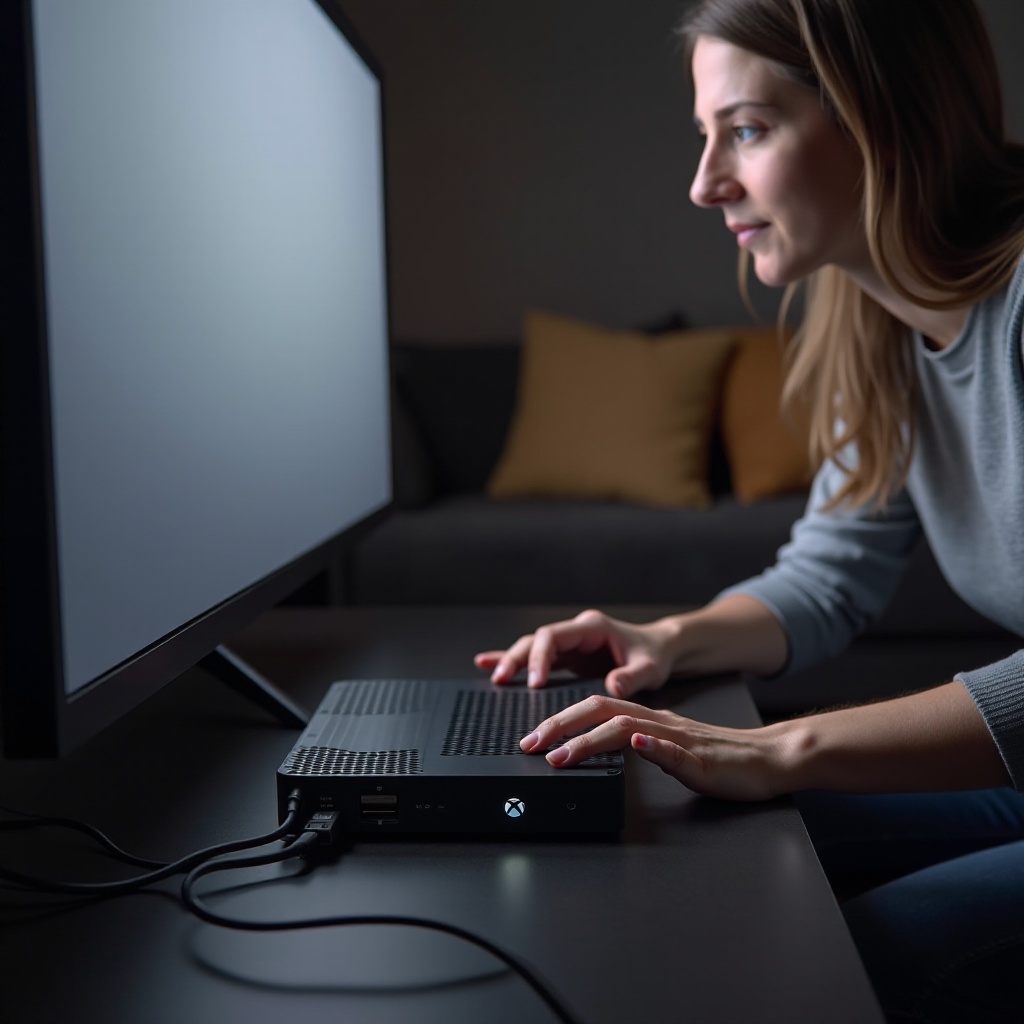
Understanding HDMI and Its Importance for Xbox
HDMI, or High-Definition Multimedia Interface, connects your Xbox to your display, carrying high-quality audio and video signals. It’s the technology that makes your games look and sound excellent. Any disruption can impact the quality of your gaming experience drastically. For anyone facing HDMI issues, the first step is recognizing the significance of a solid connection and how minor disruptions can be quickly checked and fixed. By knowing the basics, you can prevent these issues from escalating.
Quick Checks Before Delving Deep into Troubleshooting
Before exploring more complex solutions, ensure these simple checks are performed:
- Inspect Cable Condition: Look over your HDMI cable for signs of wear or damage. A damaged cable often leads to connection problems.
- Confirm Correct Input Settings: Make sure your TV or monitor is set to the proper HDMI input channel. Cycling through inputs might resolve invisible issues.
- Verify Port Stability: Ensure the HDMI cable is firmly plugged into Xbox and the display device. Loose connections can cause interruptions.
If these checks do not resolve your issue, proceed to the basic solutions designed for connectivity problems.
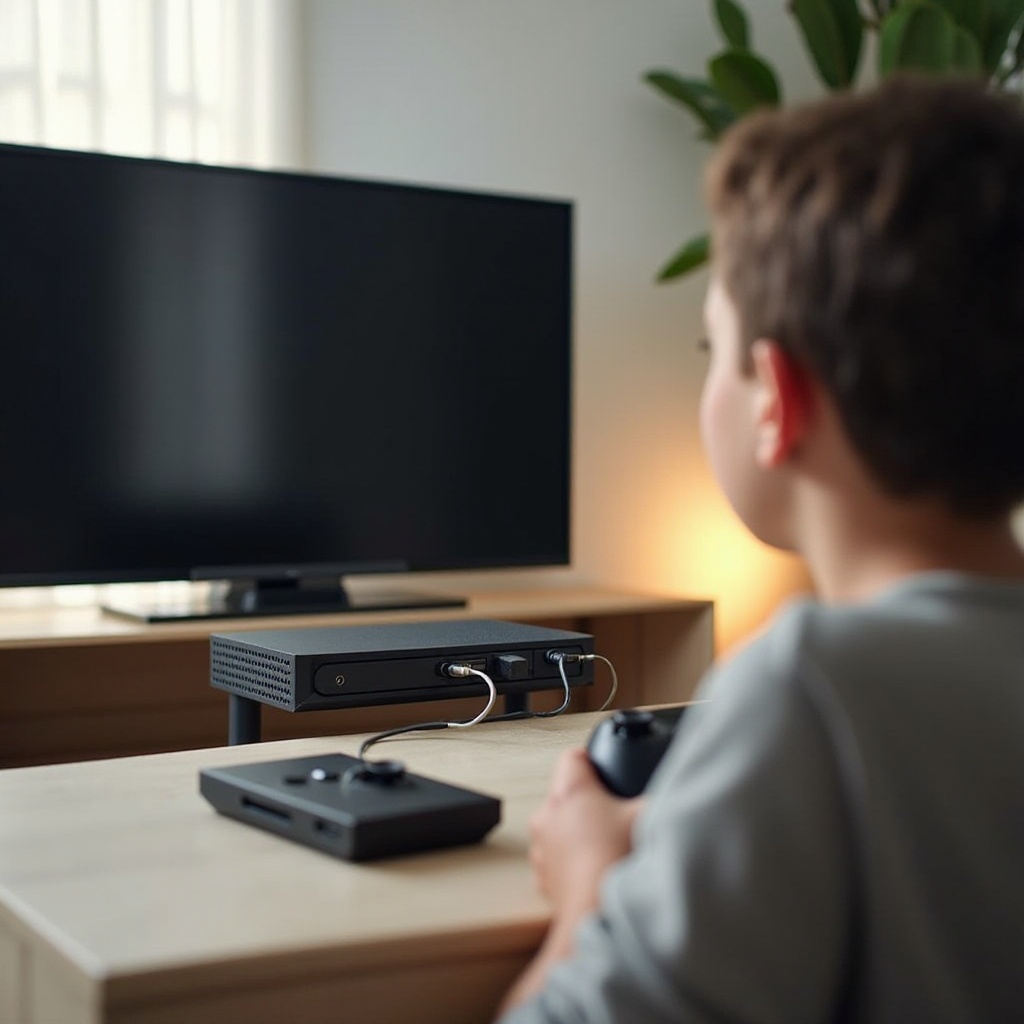
Basic Solutions to Address Xbox HDMI Difficulties
When initial checks don’t clear up the issue, try these basic steps:
- Restart Xbox and Display Devices: Power down your Xbox and TV, unplug them for a moment, then restart. This refreshes the systems and can clear temporary glitches.
- Try Alternative HDMI Cable or Port: Replace your HDMI cable or switch the port used. These components can degrade over time and impact performance.
If these methods fail to resolve your issue, more comprehensive strategies might be needed.
Advanced Strategies for Persistent HDMI Problems
When the basics don’t work, advanced troubleshooting should be attempted:
- Execute a Hard Reset and Power Cycle: Hold the Xbox power button for 10 seconds until it turns off. Unplug it briefly, then restart to clear temporary issues.
- Initiate Low-Resolution Mode: Start your Xbox by holding both ‘Eject’ and ‘Power’ buttons until a beep is heard. This forces a low-res mode to bypass video output errors.
- Check for System Updates: Ensure your Xbox has the latest software. Updates can fix bugs that might be affecting HDMI performance.
Should these steps not remedy the issue, assessing possible hardware faults becomes critical.
Recognizing When Professional Assistance is Needed
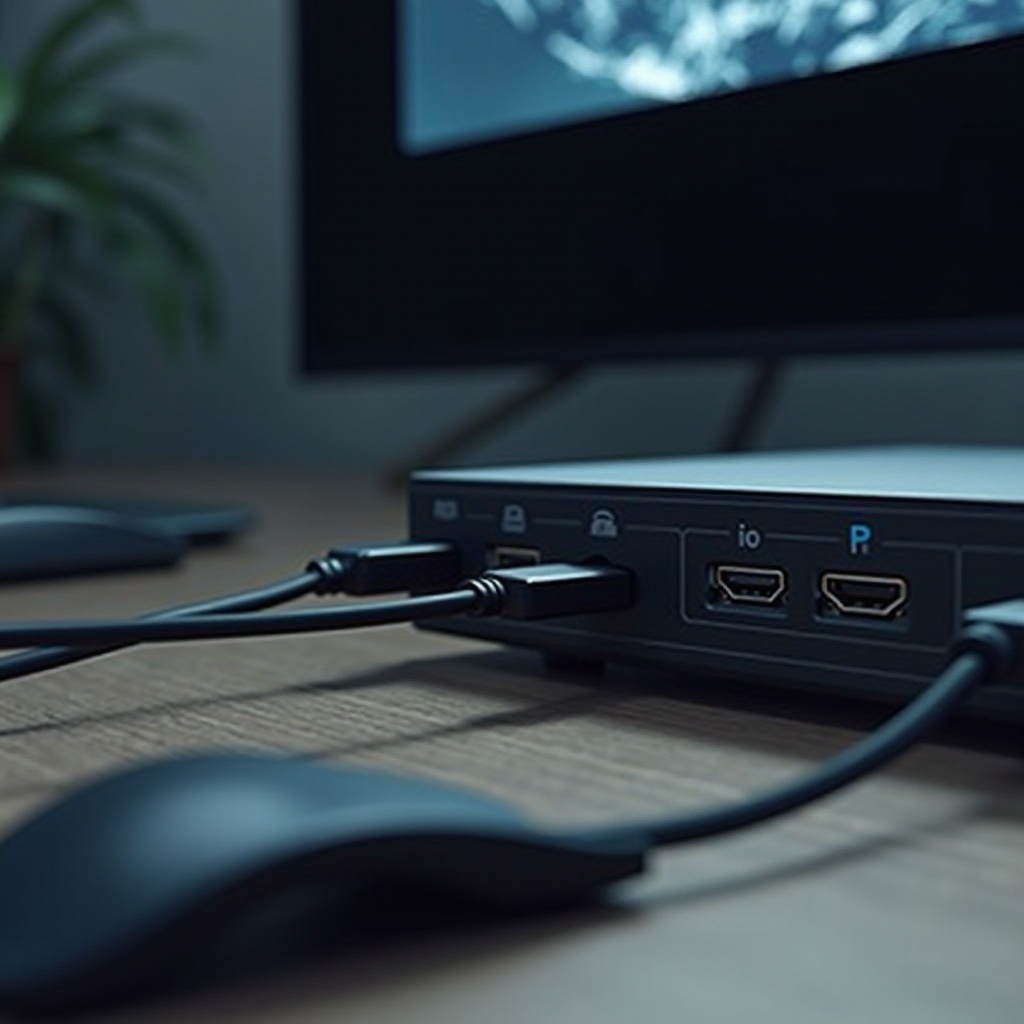
If your Xbox still faces HDMI issues after these attempts, professional help might be warranted. Frequent blank displays, visible port damage, or confirmed signal loss indicate potential hardware malfunctions. Contact Microsoft support or seek help from certified technicians, especially if under warranty, to avoid additional costs. Exhaust all simpler strategies before considering professional repairs.
Tips to Prevent Future HDMI Connectivity Issues
Maintaining your hardware can prevent future issues:
- Organize and Protect Cables: Keep cables neat and stress-free to prolong life and reliability.
- Routine Hardware Cleaning: Regularly clean your Xbox and components to prevent dust buildup, which can interfere with function.
Following these guidelines will help maintain your Xbox’s connectivity, reducing frustrations and enhancing your gaming experience.
Conclusion
With structured troubleshooting, HDMI issues can usually be resolved without much hassle. This guide offers step-by-step fixes, from simple checks to more serious strategies. Proper upkeep of your gaming setup not only prevents many problems but also ensures a seamless experience. Equipped with these solutions, you can enjoy uninterrupted gaming.
Frequently Asked Questions
Why does my Xbox say no signal on HDMI?
This typically indicates an issue with the HDMI cable or port. Try using a different cable or port to fix the problem.
Can a faulty HDMI cable damage my Xbox?
A faulty cable won’t directly damage the Xbox, but it can cause connectivity issues and signal loss during use.
How do I know if my HDMI port is broken?
Signs include persistent connection failures and physical damage. Testing other ports can help confirm the issue.