Introduction
Beats headphones are celebrated for their superb audio quality, making them a favorite among music enthusiasts. If you’re looking to pair Beats headphones with an Android device, you’ve come to the right place. This guide presents easy-to-follow instructions, addresses potential connectivity challenges, and offers tips to heighten your audio experience.
Ensuring Compatibility
Before pairing your Beats headphones with an Android device, verifying compatibility is crucial. Not every Beats model integrates perfectly with all Android devices.
- Device Check: Consult the manuals of your Beats headphones and Android device. Also, visit the manufacturer’s website for specific details.
- Compatibility Resources: Online forums and tech sites often provide lists discussing the interoperability of various Beats models with Android devices.
- Bluetooth Version: Confirm both your Beats and Android device support the same Bluetooth version to ensure smooth connectivity.
With compatibility squared away, the next logical step is to establish a Bluetooth connection.
Setting Up Bluetooth Connection
Bluetooth is the key to a wire-free, convenient listening experience. Once you’ve ensured your devices are compatible, connecting them via Bluetooth becomes straightforward.
Preparing Your Beats for Pairing
- Power On: Activate your Beats headphones using the designated power button.
- Enter Pairing Mode: Hold down the power button until the indicator light starts flashing, indicating your device is in pairing mode.
Activating Bluetooth on Your Android Device
- Open Settings: Access the ‘Settings’ app on your Android device.
- Enable Bluetooth: Navigate to Bluetooth settings and toggle the switch to activate it.
- Make Discoverable: Ensure your device is discoverable, a step available in Bluetooth settings.
Step-by-Step Connection Process
- Scan for Devices: Your Android phone will search for nearby Bluetooth devices.
- Select Your Beats: When the Beats headphones appear, tap to initiate the connection.
- Confirm Pairing: If prompted, confirm the pairing on both devices to complete the process.
After these steps, your Beats should be connected via Bluetooth. Let’s move on to alternative connection methods for uninterrupted listening.
Wired Connection Option
While Bluetooth is the standard choice, a wired connection provides certain advantages, such as conserving battery life and ensuring uninterrupted audio.
When to Use a Wired Connection
- Battery Efficiency: Wired connections do not consume additional battery.
- Stable Audio Quality: Consistent sound quality without wireless latency.
How to Connect Beats Using a Cable
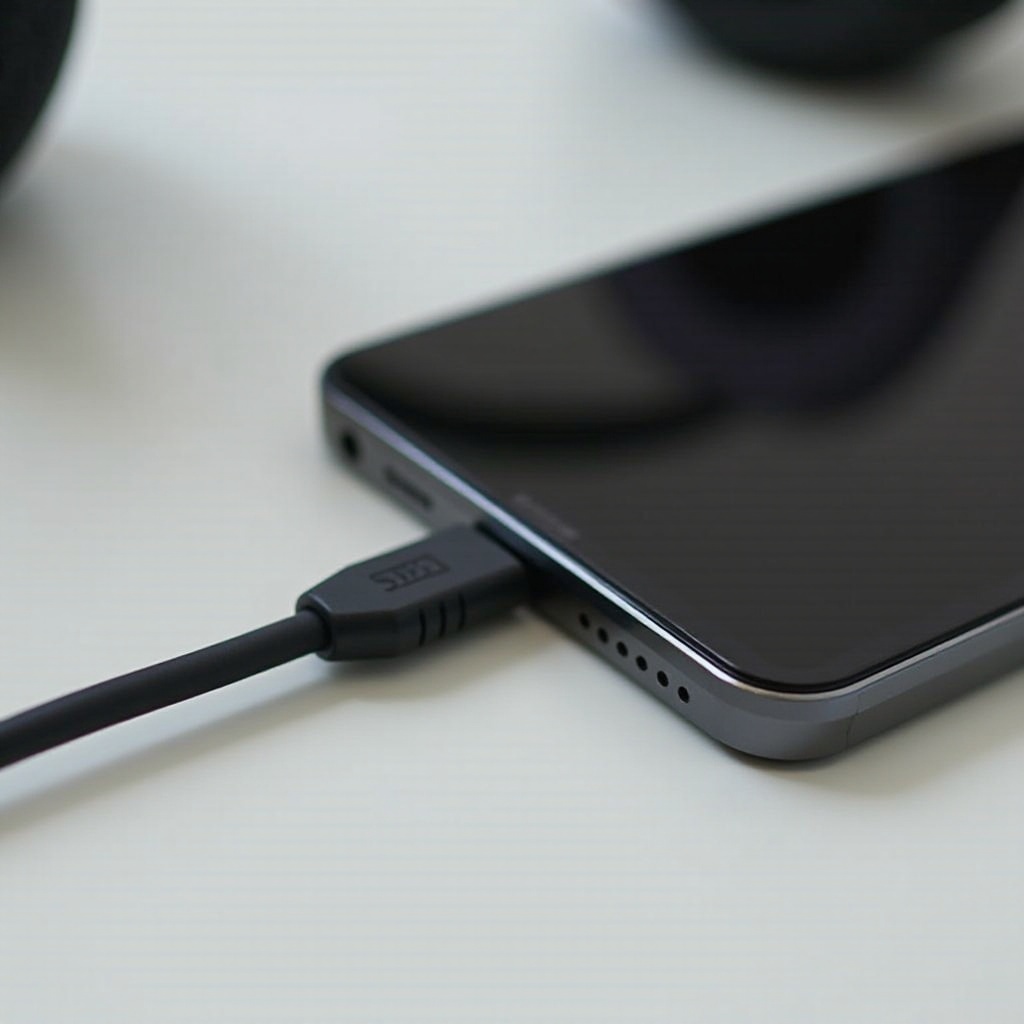
- Confirm Ports: Check if your Beats model includes a 3.5mm jack or compatible port.
- Use an Adapter: Some Android devices may require an adapter for the connection.
- Connect and Play: Securely plug the cable into your Beats and Android device for instant listening.
This wired option proves useful especially when dealing with Bluetooth restrictions. However, potential technology hiccups necessitate troubleshooting knowledge.
Troubleshooting Common Issues
At times, Bluetooth connections may be less than perfect. Here are solutions for common challenges encountered when pairing Beats with Android devices.
Problems with Pairing or Connection Drops
- Proximity Check: Ensure both devices are close to each other.
- Reduce Interference: Minimize interference from other Bluetooth or electronic devices.
- Bluetooth Reset: Turn Bluetooth off and back on for both devices.
Resetting Your Beats Headphones
- Power Down: Turn off your Beats headphones.
- Hold Power Button: Press and hold for 10 seconds.
- Release and Retry: Release when the light flashes and attempt reconnecting.
Updating Software and Firmware
- Android Updates: Make sure your Android device is running the latest software version.
- Firmware Updates: Check and update the firmware for your Beats headphones.
By following these troubleshooting steps, you can resolve most issues and ensure your Beats stay connected. Next, let’s optimize your audio experience.
Enhancing Your Audio Experience
To make the most of Beats headphones when paired with Android, tweaking the audio settings can significantly boost sound quality.
Customizing Sound Settings on Android
- Built-in EQ: Utilize your Android’s built-in equalizer settings for audio refinement.
- Tailor Sound: Adjust bass, treble, and other sound levels according to your preferences.
Recommended Apps for Audio Enhancement
- Music Apps: Leverage apps like Spotify or Apple Music for sound customization.
- Audio Tools: Use apps such as Wavelet for additional sound enhancements.
Tailoring sound settings and leveraging powerful apps will guarantee an excellent listening experience. In summary, pairing Beats with Android provides an impressive audio experience.
Conclusion
Successfully connecting Beats headphones to your Android device is a matter of checking compatibility, following methodical connection steps, and troubleshooting when necessary. Whether opting for Bluetooth or wired connections, a few techniques can improve usability and audio quality, ensuring an unrivaled listening experience. Dive into the world of high-quality sound, effortlessly achieved with your Beats headphones and Android device.
Frequently Asked Questions
How do I reset my Beats headphones for a fresh connection?
To reset, turn off your Beats headphones, press and hold the power button for 10 seconds, then release when the light flashes.
Why won’t my Beats connect to my Android phone?
Ensure Bluetooth is enabled on both devices, check compatibility, and confirm they are within range. Restart both devices if the problem persists.
Can I use third-party apps to enhance the connectivity and audio quality?
Yes, using third-party apps can enhance sound quality and provide customizable audio experiences, improving overall connectivity and usage.