Introduction
Connecting your JLab earbuds to a MacBook should not be challenging. With wireless earbuds becoming a necessity for work and leisure, knowing how to pair them effectively with your devices is essential. This guide provides an easy walkthrough for setting up your JLab earbuds with your MacBook, ensuring seamless connectivity and optimized audio quality. Whether you own the latest model or an older version, these instructions guarantee a smooth setup.
Understanding JLab Earbuds
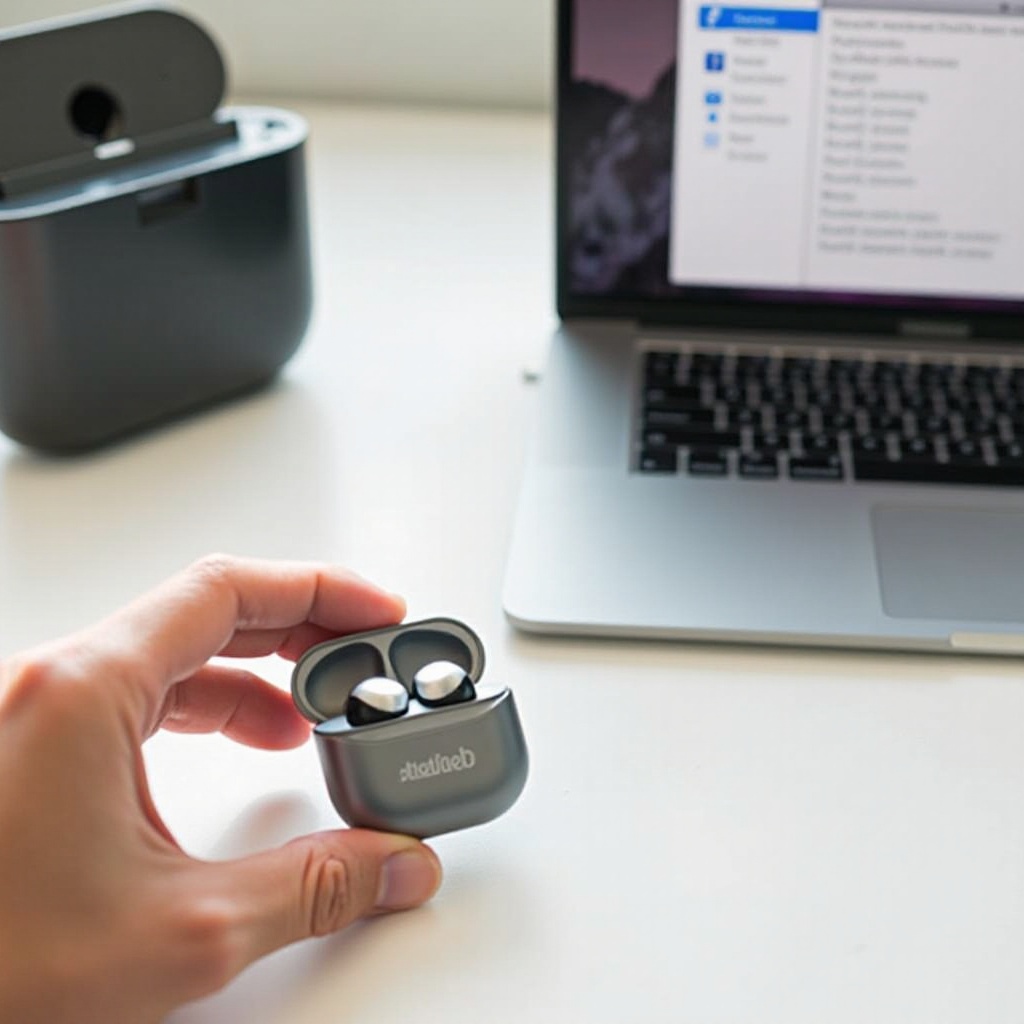
JLab earbuds are known for their quality, comfort, and advanced features. They cater to various user preferences, boasting Bluetooth connectivity suitable for wireless use with most MacBooks. Understanding these products’ capabilities will help you maximize their potential and ensure compatibility with your devices.
Features of JLab Earbuds
JLab earbuds come equipped with a host of features:
– Bluetooth technology for hassle-free wireless operation.
– Extended battery life to support long listening sessions.
– Options for noise-canceling and customizable sound settings.
These features contribute to their popularity and utility among tech enthusiasts.
Compatibility with MacBook
Prepare your MacBook by ensuring compatibility. Most modern MacBooks support Bluetooth, but activation is crucial for seamless pairing. Getting your settings right beforehand ensures a smooth connection.
Preparing Your MacBook for Bluetooth Pairing
Setting up your MacBook is the next step. Make sure your system is ready for pairing by following these guidelines:
Enabling Bluetooth
- Click on the Apple menu and select ‘System Preferences.
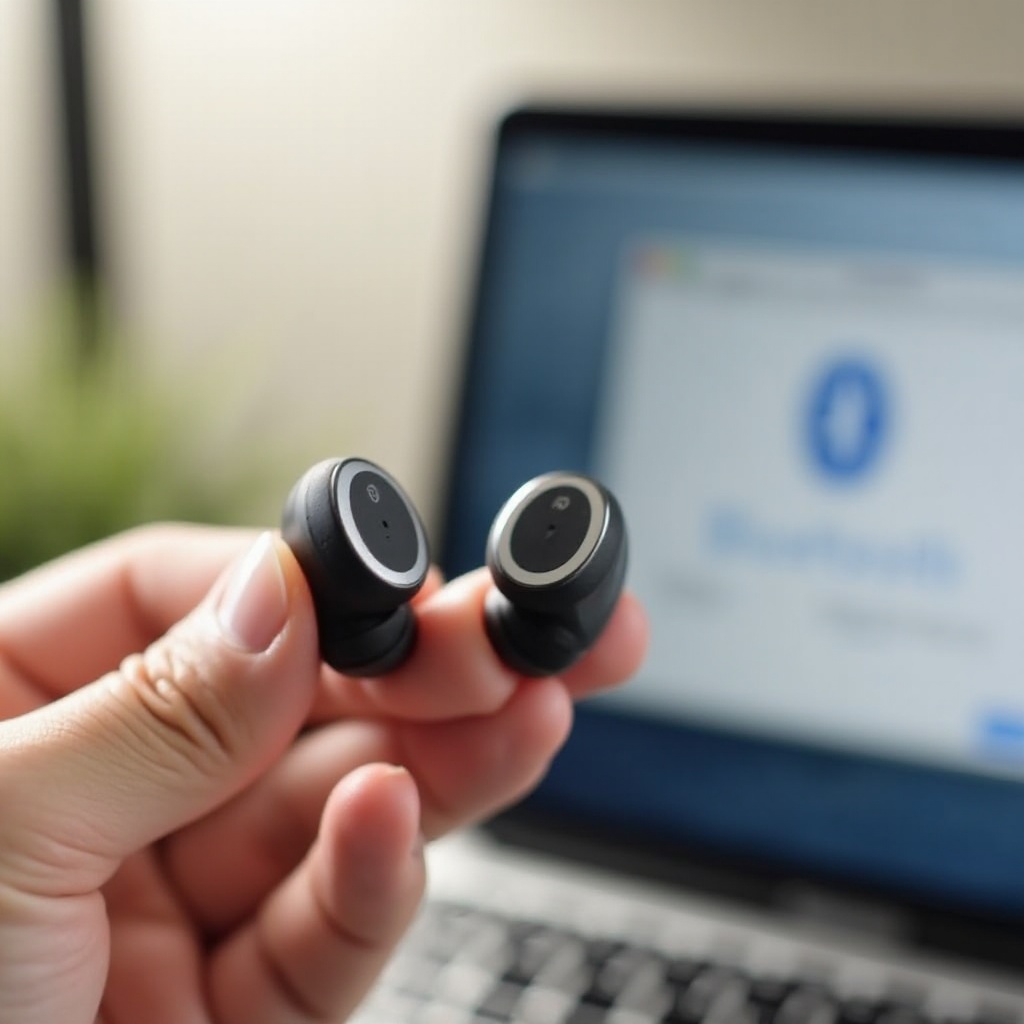
- Navigate to ‘Bluetooth’ and ensure it is turned on.
- A blue icon will indicate that Bluetooth is active and ready to pair.
Updating macOS for Compatibility
Keeping your macOS updated is essential for compatibility. To update:
1. Access ‘System Preferences’ from the Apple menu.
2. Select ‘Software Update.
3. Follow the on-screen instructions to install any available updates.
Step-by-Step Guide to Connecting JLab Earbuds
With your MacBook prepped, you are now ready to connect your JLab earbuds. Follow this step-by-step process to ensure a successful pairing.
Powering On and Setting Earbuds to Pairing Mode
- Remove your earbuds from their case and power them on.
- Hold the Bluetooth button until the LED flashes, indicating they are ready to pair.
Accessing Bluetooth Settings on Your MacBook
- Open ‘System Preferences’ and click on ‘Bluetooth.
- Wait for your earbuds to appear in the list of devices.
Pairing Your Devices
- Select your JLab earbuds from the list and click ‘Connect.
- A confirmation message will appear once the connection is successful.
Troubleshooting Common Connection Issues
In some cases, you might encounter connection issues. Here are solutions to the most common problems you might face.
Earbuds Not Visible in Bluetooth Menu
- Ensure the earbuds are in pairing mode.
- Check proximity to the MacBook and minimize interference.
- Try toggling Bluetooth off and back on.
Lost Connection During Use
- Verify that Bluetooth is active on your MacBook.
- Ensure your earbuds are sufficiently charged.
- Consider restarting Bluetooth on both devices.
Resetting JLab Earbuds
Reset your earbuds if issues persist:
1. Power them off and back on.
2. Hold the Bluetooth button until the LED flashes rapidly, indicating a reset.
Enhancing Sound Quality and Performance
Once connected, enhancing your audio settings will improve your listening experience.
Adjusting Sound Settings on MacBook
- Go to ‘System Preferences’ and select ‘Sound.
- Modify the volume and balance settings to suit your preferences.
Customizing Earbud Controls
Consult your JLab model’s manual to learn about customizing controls directly from your earbuds, providing a tailored experience.
Maintenance Tips for Longevity
Taking care of your JLab earbuds ensures they remain in top shape and extends their lifespan.
Cleaning JLab Earbuds
- Use a dry cloth to clean your earbuds regularly.
- Avoid exposing them to water to prevent damage.
Storing Earbuds Safely
- Always place your earbuds in their charging case when not in use.
- Keep them away from extreme temperatures.
Conclusion
Following these steps will ensure that connecting your JLab earbuds to a MacBook is a simple task. Whether for work or entertainment, achieving this connection enhances your overall audio experience. Refer back to this guide for troubleshooting and tips as needed.
Frequently Asked Questions
How do I reset my JLab earbuds?
To reset, power off your earbuds and hold the Bluetooth button until the LED flashes rapidly, indicating a reset.
What should I do if audio quality is poor?
Check the MacBook’s sound settings and ensure you are within a suitable range for a stable connection.
Can I connect multiple devices at the same time?
JLab earbuds typically connect to one device at a time, but some models support multi-device connections. Check your model’s specifications.